
What is a Progressive Web App (PWA)?
A progressive web app is a type of web app that can be installed by the web browser. They act like a real app but is run by the web browser commonly as its own window.
Can a PWA be accessed offline?
Select PWA's can be run offline (without internet), as its service worker can cache the entire app for offline viewing. This is useful if, e.g., your power is out and you have no internet.
How to install PWA's
Installing them is straightforward in your browser! We recommend Google Chrome or Microsoft Edge for the best experience.
Install using Google Chrome (desktop)
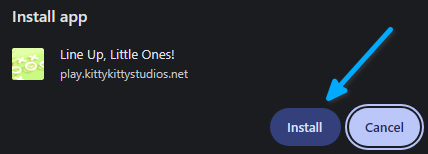
Look at the right of the address bar:

The icon labeled is the "install app" icon. This only applies to sites that can be installed. Click that and follow its instructions.
Install using Microsoft Edge
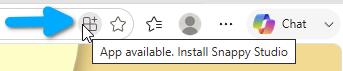
Same as Google Chrome, look for the blocks icon on the address bar and click it to install.
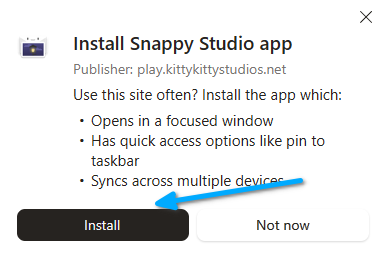
Install using Mozilla Firefox
This requires the Progressive Web Apps extension on the add-on store. It's free and is required for this browser to install PWA's.
Afterward, on the address bar look for the PWA icon and click it!
Install using Google Chrome (Android)
On the top right corner of the screen tap the three dots > Install app.
Install using Google Chrome (iOS / iPadOS)
Note: this requires your iOS to be version 16.4 or later
Tap the share (upwards arrow) button on the top or bottom of the screen > Add to Home Screen.
Install using Safari (macOS)
This requires macOS Sonoma or later
On the top bar of macOS, click File > Add to Dock. Type a name for the app, e.g. "Clip It" for our game, Clip It.
Install using Safari (iOS / iPadOS)
Tap the Share button (upward arrow) > Add to Home Screen.
Install using Samsung Internet
On the address bar, tap the downwards arrow to install the PWA!
Install using other browsers
Please check browser compatibility on a site like caniuse.com to see if your browser version supports installing of PWA's.