How to Connect your PC to a TV
A lot of times, local multiplayer is just...fun with a TV. Now, how do you connect your PC to a TV? This guide covers the options to play PC games on your big screen.
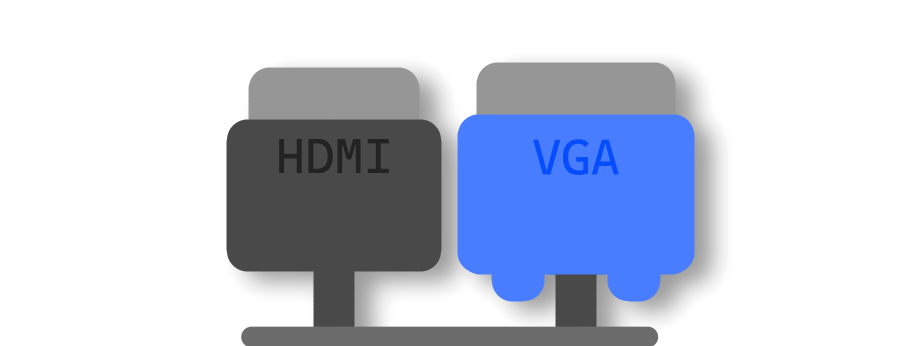
Option 1: HDMI / VGA Cable (laptop recommendation)
If your PC has HDMI or VGA ports, connect a cable to it, and if your TV has it, into your TV. Switch your TV to whatever input you plugged the PC into, and boom, you have your desktop on a big screen!
Many older TV's from the 2010s era have a VGA port to plug your PC into. If your PC only has VGA and your TV only has HDMI, purchase a VGA to HDMI converter.
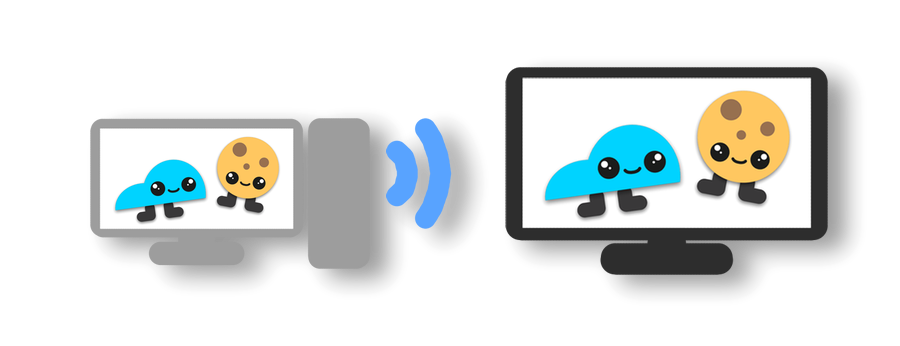
Option 2: Wireless Projection
This option uses Bluetooth and a smart TV or streaming device to mirror your desktop to the big screen.
This requires the additional feature "Wireless Display", go to Settings > search "features" > install Wireless Display.
On Windows, just open Start, search "wireless display", then click Connect to a wireless display, and figure out what TV or streaming device you want to connect to (in this case, if your device is named something like "Mancave Roku Stick", just select that name)
Wait for it to connect, then allow your TV to access the video being produced by your PC, then you are all good!
Not all PC's come with Bluetooth and may require a Bluetooth USB adapter. Also, depending on your PC's hardware, there may be some latency and quality issues. As said, wired connections are easy, don't need Bluetooth, and look so much better!